Send every client the same review request automatically, with your Google link, and stay inside Google's rules, the ACCC and the Spam Act.
In this article
Most clients who'd happily review you are never asked. In BrightLocal's 2026 survey, 83% of people who were asked to leave a review went on to leave one. Automating the ask means it happens after every client, not only when someone remembers. The catch is that the rules are strict, and the most common review automation, the one that sends only happy clients to Google, breaks them.
The short answer
To automate Google review requests, send every client the same short message soon after the work is done, with your direct review link from Google. Don't screen out unhappy clients, don't offer anything in return, and don't ask for five stars. Include your business name and an easy way to opt out.
Why reviews are worth asking for
Reviews are part of how people choose you, and part of how Google ranks you. In BrightLocal's 2026 survey, 47% of consumers said they won't use a business with fewer than 20 reviews, 68% will only use one with four stars or more, and 74% only care about reviews from the last three months.
Google says more reviews and positive ratings can help your local ranking. Local search experts rank the number of reviews, how recent they are and a steady pace of new ones among the top factors for the map, as our Local SEO guide explains. A steady pace is exactly what an automation gives you.
How an automated review request works
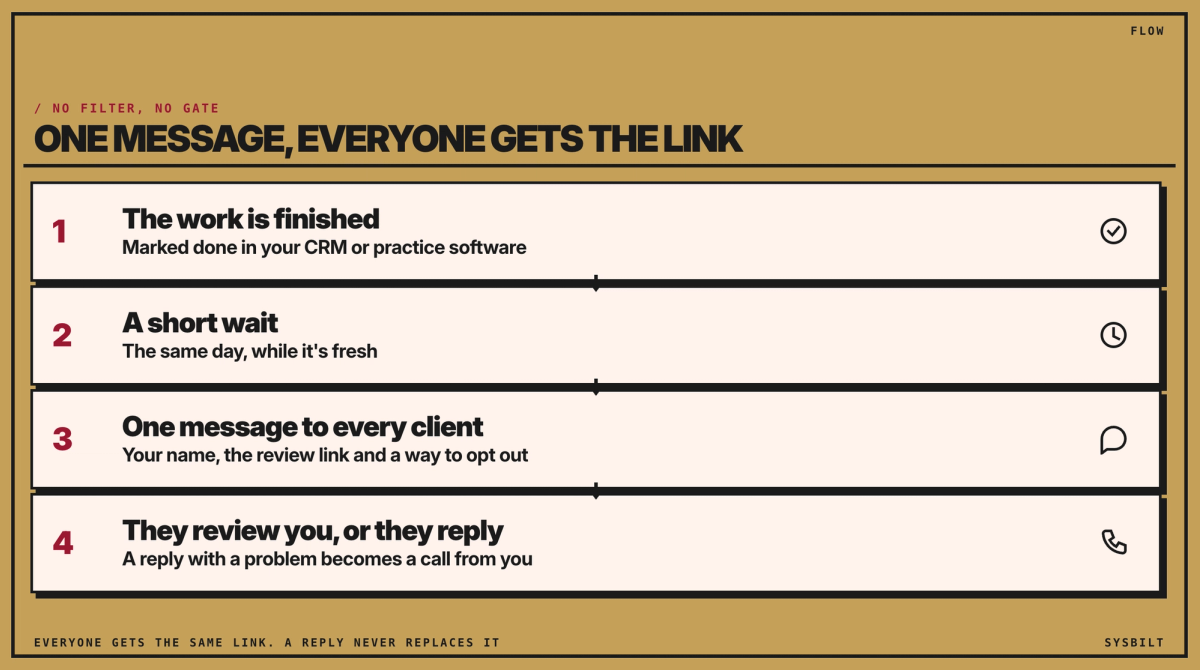
- 01The visit or the work is finished. Your booking or practice software records it, for example as a completed appointment, and that's what sets the message off. For a course of treatment, the end of the course is the fairest moment, because they've seen the result. Pick one moment and use it for everyone.
- 02A short wait. Send it the same day, while the experience is fresh.
- 03One message to every client, with your direct Google review link.
- 04They review you, or they reply. If they reply with a problem, it becomes a task for someone to call them.
Don't screen clients first. A common setup asks "Were you happy?" and sends only the yeses to Google. Google's review policy doesn't allow businesses to "selectively solicit positive reviews", and the rules below explain why it's a legal risk in Australia too.
What to send, and when
Keep it short and personal, and send it the same day the work finishes. There's no proven best hour, so try a time that suits your clients and watch the replies. Here's an example you can adapt:
Hi [first name], thanks for choosing [business name]. Would you leave us a Google review? [review link]
If anything wasn't right, reply here and we'll call you.
Reply STOP to opt out.
A text is quick to act on, but email works too, especially for clients you mostly email. Google's help says you can also share the link through WhatsApp or a Facebook post.
The rules, on one page
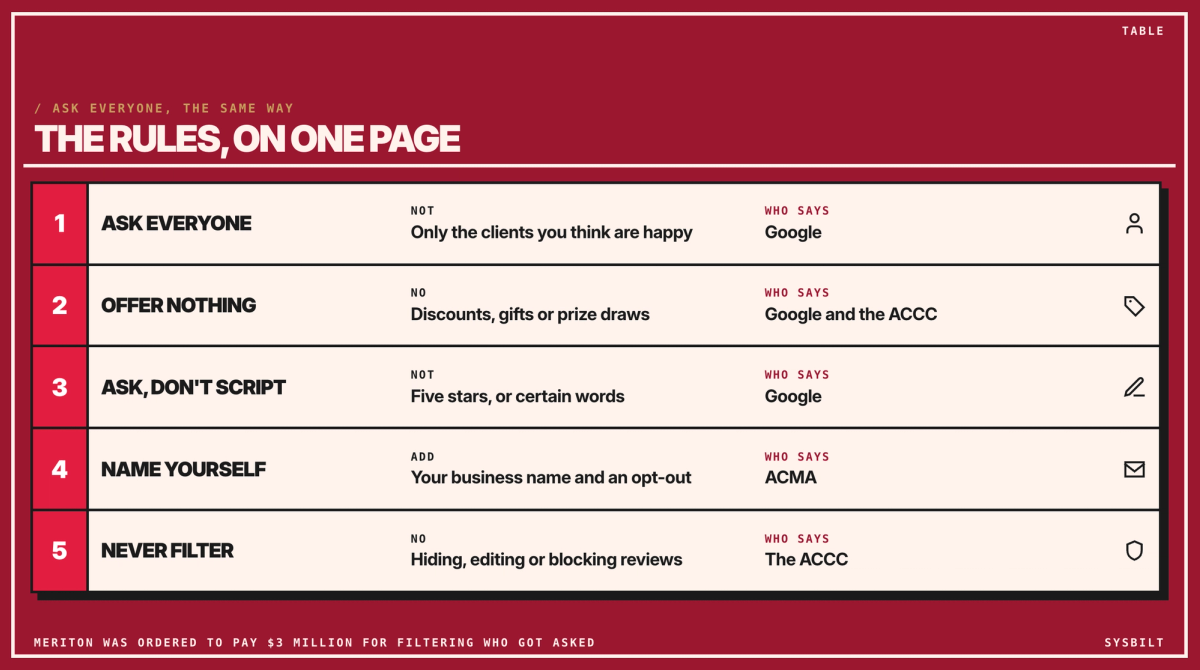
- Ask everyone the same way. Google doesn't allow businesses to discourage negative reviews or "selectively solicit positive reviews".
- Offer nothing in return. Google's policy bans discounts, gifts or payment for a review. The ACCC's guidance on online reviews warns that rewarding positive reviews risks misleading consumers and breaching the law.
- Don't ask for stars or words. Google says businesses shouldn't request specific content in reviews, or pressure people to review on the spot.
- Name your business, and let people opt out. A review request promotes your business, so treat it as marketing under the Spam Act. ACMA's spam rules ask for consent, your business name and an easy way to unsubscribe. ACMA says consent can be inferred when someone gave you their number as a client and the message is directly related to that relationship. The simplest way to be sure is to ask when they book, with a tick box on your booking or intake form.
- Keep private details out. Name your business and add the link, but don't mention the treatment or the reason for the visit. Health information is sensitive information under the Privacy Act.
- Never hide, edit or filter reviews. The ACCC says suppressing or removing genuine negative reviews may mislead. In 2018 the Federal Court ordered Meriton to pay $3 million for stopping guests it suspected would review it badly from getting TripAdvisor's review emails. In 2020 the court ordered HealthEngine to pay $2.9 million, partly for misleading patient reviews. HealthEngine admitted it hadn't published around 17,000 reviews and had edited around 3,000 to remove negative parts or make them sound better.
- Asking in person is fine, if it's the same for everyone. Google says businesses shouldn't pressure people to review on the premises, so don't hand them a tablet or wait while they write it.
If you run a health practice
Asking every patient is fine. Avant says practices can ask patients for ratings on sites such as Google, as long as every patient is asked the same way. Ahpra's testimonial rules govern how you use reviews in your own advertising, including your website and your social media posts, so check them before you share a review.
When you reply to a review
Thank people, and answer complaints calmly, but never reveal a client's details in a public reply. The privacy regulator has warned businesses after a real estate agency disclosed a reviewer's personal information in its response.
Set it up this week
- 01Copy your review link. In your Business Profile, choose Read reviews, then Get more reviews, and copy the link. Each location has its own profile and its own link, so send clients the one for the place they visited.
- 02Pick the moment: a completed appointment or a finished piece of work in your booking or practice software, or in your CRM (the system that holds your client list).
- 03Connect them. Many booking and practice systems already send texts, such as appointment reminders, so check whether yours can send one after a visit. If it can't, a tool such as Zapier or Make.com connects one app to another, so a completed appointment can send a text or an email. Check your provider's price per text.
- 04Write the message, with your business name and an opt-out.
- 05Send it to everyone, the same day, with no satisfaction filter.
- 06Choose where replies go: an inbox or a phone your front desk checks, so someone sees them the same day and anyone with a problem gets a call.
- 07Test it on your own phone before it goes to a client. Ask each client once, at the moment you picked, and start with clients from now on.
Not sure what your software can do? Send its provider these questions:
Can our system send an automatic text or email after an appointment is completed?
Can it include a link, our business name and an opt-out?
Where do replies go, and who can see them?
Where is our client data stored, and does it leave Australia?
As a rough guide, it's an afternoon's work for whoever looks after your systems, or for you if you're comfortable in your software's settings. It's a good first automation, alongside the three tasks we'd automate first.
What to watch each month
- New reviews a month. Aim for a steady pace rather than bursts.
- Your average rating. If it drops, look at the service, not the message.
- Replies with a problem. Each one is a client you can still win back.
- Opt-outs. If many people opt out, change the wording or the timing.
We set review requests up inside your CRM or practice software, so every client is asked the same way and every reply reaches a person. That's part of our Automation service.
Book a 15-minute call with our team in Sydney, by phone or video, and we'll look at how you ask for reviews now and what to automate first. We don't upsell.

WRITTEN BY
Felipe Chaparro
Systems Architect and Founder of SYSBILT. Felipe engineers custom automation, AI workflows, and performance web architectures for scaling Australian service businesses.