How to repurpose one video into a month of content: record it to be cut up, the twelve pieces to take from it, the tools for each step and a four-week schedule.
In this article
Once a month, you record a ten-minute video answering a question buyers ask you, such as what to check before you bid at auction. It goes on YouTube, gets a few hundred views, and that's the end of it. Meanwhile your Instagram and LinkedIn sit quiet for weeks.
Here's how to repurpose one video into a month of content: how to record it so it cuts up well, the twelve pieces to take from it, the tools for each step, and a four-week schedule.
The short answer
Record one ten-minute video in three or four clear sections. Cut each section into a short clip, turn the transcript into a blog post, take three lines for graphics and one idea for an email. That's twelve pieces: ten social posts, plus a blog post and an email, so three things go out each week for four weeks.
Record it to be cut up
- One question, four sections. Each section makes one point that stands on its own, such as the four things to check before an auction.
- Say the point at the start of each section: "The second thing to check is the building report." Then each clip makes sense without the rest.
- Ten minutes is plenty. A phone on a tripod, light from a window and a clip-on microphone are enough.
- Film in landscape, with room around you, so each clip can be cropped to the tall format that Instagram and Facebook use.
- Keep it to general information: no promises about prices or results, and a client's story only with their written permission. Under the Australian Consumer Law, businesses mustn't mislead customers (ACCC).
The twelve pieces
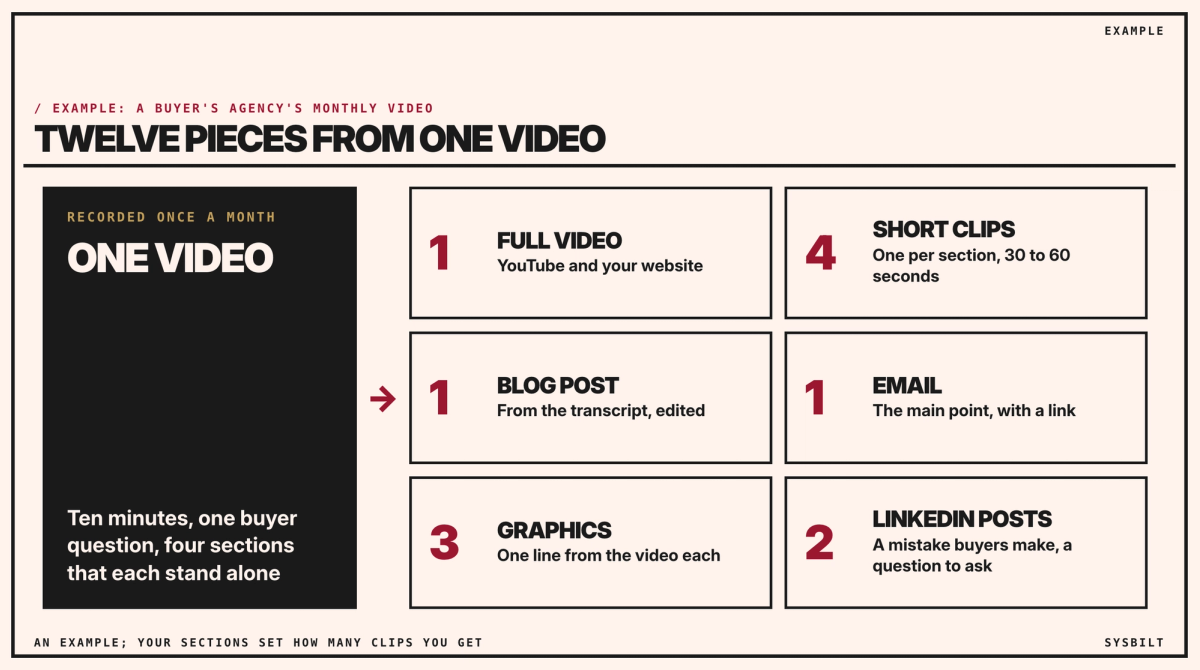
Counting the full video, one recording gives you twelve pieces:
- The full video, on YouTube and on your website.
- Four short clips, one per section, of 30 to 60 seconds, for Instagram, Facebook and LinkedIn, each with captions so it works with the sound off. Open each clip with its point, said and shown on screen as text, such as "Before you bid: check the building report." Then the rest can be as simple as: "Read its summary page first, and if anything there is structural, ask a builder before you bid."
- A blog post from the transcript, edited rather than pasted. Our post on what makes content look fake covers the edit.
- An email to your buyer list, with the main point, a link to the video, and a question: what should next month's video answer? Our post on writing a weekly email newsletter in 10 minutes, under Related articles at the end of this page, covers sending it.
- Three graphics, each with one line from the video.
- Two LinkedIn posts in plain text: a mistake buyers make, and a question they should ask.
The tools for each step
| Step | Two options | Price, checked 7 November 2026 |
|---|---|---|
| Transcript and clips | Descript, which edits video by its transcript; or CapCut, a video editor for phones and computers | Descript: a free plan to try it (exports carry a watermark), then from US$16, about A$23, a month per person, billed yearly. CapCut Pro: A$37.99 a month or A$299.99 a year |
| Graphics | Canva or Adobe Express | Canva Pro is A$20 a month or A$165 a year; Adobe Express Premium is A$14.29 a month |
| Mailchimp or HubSpot | Mailchimp: a free plan for fewer than 250 contacts, then Essentials about A$18.88 a month for up to 500, before tax. HubSpot: a free plan for two users, then Starter US$20, about A$29, a seat a month |
Prices are from each tool's own pricing page (Descript, CapCut, Canva, Adobe Express, Mailchimp, HubSpot); Descript's and HubSpot's are in US dollars, at the Reserve Bank's rate on 6 November. One caution if you use CapCut: its ordinary music is licensed for personal use only, so in business posts use its Commercial Sounds, the part of its library cleared for business use, or your own audio (CapCut). CapCut is provided by Bytedance, based in Singapore, under its terms (CapCut), so check where it stores your footage before you upload anything with clients in it.
To publish on a schedule, our post on the best social media scheduling tool for your business compares the options.
A four-week schedule
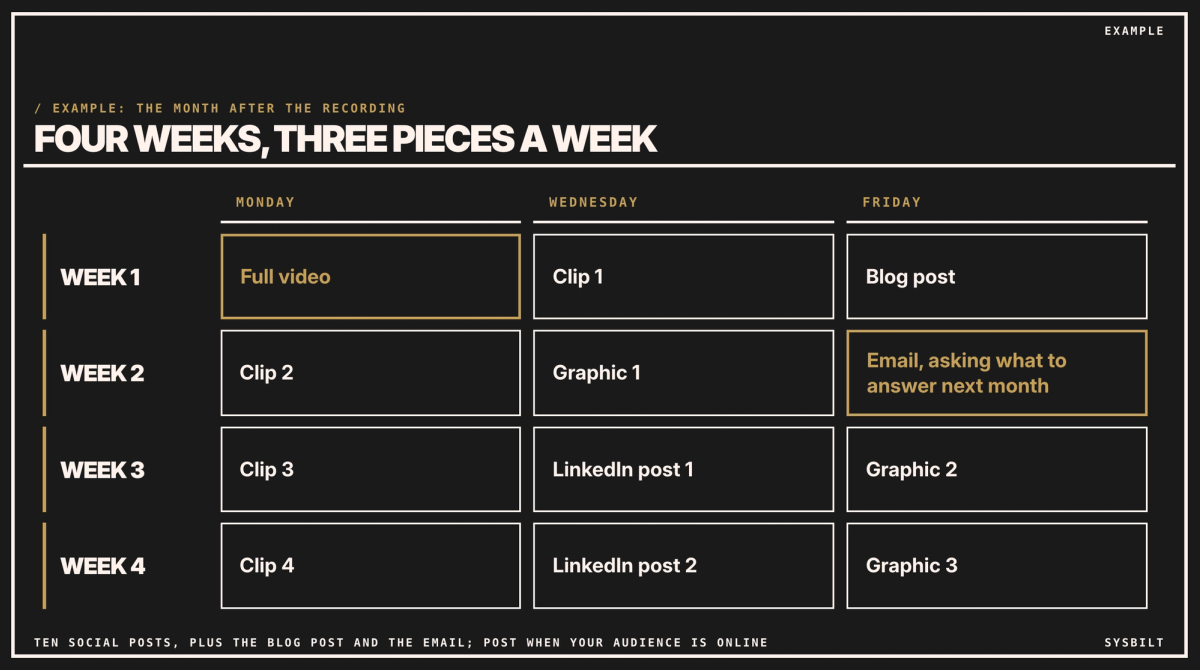
Three things a week, on Monday, Wednesday and Friday, for four weeks. Ten are social posts; the blog post goes on your website and the email to your list:
- Week 1: the full video, clip 1, the blog post.
- Week 2: clip 2, graphic 1, the email.
- Week 3: clip 3, LinkedIn post 1, graphic 2.
- Week 4: clip 4, LinkedIn post 2, graphic 3.
Post every clip on Instagram and Facebook, and the two text posts and your best clip on LinkedIn.
Split the work. You record the video, which takes about an hour, and put it in a shared folder. Your assistant cuts the clips, drafts the blog post and the email, makes the graphics and schedules it all from that folder, and you approve the blog post and the email there before anything goes out. In this example, once it's routine, your assistant spends about two hours on the clips, an hour on the blog post and email, and an hour on the graphics and scheduling: half a day. The first month takes longer.
Then do it again
Next month's question comes from this month's replies: the comments, the enquiries and the questions buyers ask on calls. Ask every new enquiry how they found you, and note which piece they mention, so you know which kinds of clip to make more of.
If you'd rather have it set up, we set up the routine with your team: the recording checklist, the templates for each piece and the schedule. That's part of our Content Systems service.
If you'd like a second pair of eyes, book a 15-minute call with our team in Sydney, by phone or video. Bring last month's video, and we'll show you the pieces in it, so you leave knowing what to cut first. There's no obligation after the call, and we don't upsell.

WRITTEN BY
Felipe Chaparro
Systems Architect and Founder of SYSBILT. Felipe engineers custom automation, AI workflows, and performance web architectures for scaling Australian service businesses.