
Notion vs Google Drive for a company wiki: how they differ, what each costs in Australia, how to make Drive work as a wiki, and when Notion is worth it.
In this article
The field procedures are in Google Drive, the report templates are in Drive, and so are three versions of the sampling checklist. Staff still message you to ask where things are, and someone has suggested moving it all to Notion.
Here's Notion vs Google Drive for a company knowledge base, or wiki, for a consultancy like yours: how they differ, what each costs for 18 people, how to make Drive work as a wiki, and when Notion is worth adding.
The short answer
If your team already works in Google Workspace, start with Drive: a start page, folders by area, a naming rule and one owner, at no extra cost. Notion is better at pages inside pages, but someone has to build and keep it, and for 18 staff it adds about A$261 a month, or A$522 with reminders to check pages.
Drive and Notion side by side
| Google Drive | Notion | |
|---|---|---|
| Cost | In your Google Workspace plan: Business Standard is A$19.80 a user a month | Plus US$10 (about A$14) or Business US$20 (about A$29) a seat a month, paid yearly |
| Structure | Files in folders, in shared drives the company owns | Pages inside pages, and databases: lists where each row is a page |
| Set-up | A shared drive and a start page | Someone builds the structure and templates |
| Keeping it current | A naming rule and an owner who checks the dates each month; Drive won't remind anyone | Owners, and on Business, verified pages that remind the owner when they run out |
| On site with no signal | Mark each file available offline in the Drive app before you go | Mark each page available offline in the app; a database brings only the first 50 rows of its first view |
| Your team | Already uses it | Learns a new tool |
Google's prices are on a one-year commitment, checked 7 November 2026 (Google); Notion's are in US dollars, paid yearly, checked the same day (Notion), at the Reserve Bank's rate on 6 November. Features are from each tool's pricing and help pages, including Notion's on pages offline (read 8 November). Notion's free plan is for individuals, so a team needs Plus or Business.
What it costs for 18 people
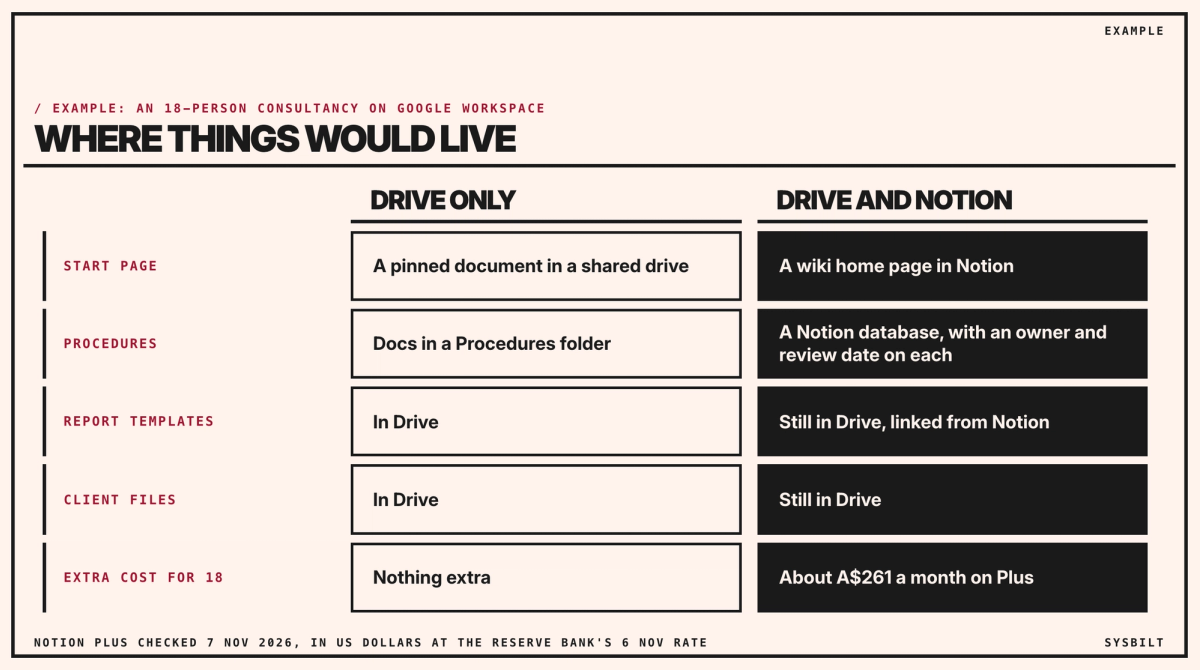
Drive adds nothing to the bill: it's part of the Workspace plan you already pay for. Notion would be on top of that. On Plus, 18 seats is US$180 a month, paid yearly, about A$261; on Business, US$360, about A$522. Paying monthly costs more: US$12 and US$24 a seat.
The subscription isn't the only cost, on either side. Your report templates and client files are Google Docs and Sheets, so they stay in Drive either way. Notion would sit beside Drive, not replace it: staff would look in two places, and someone has to keep the links between them current. Drive has a time cost too: the owner checking the dates in file names each month, chasing the naming rule and keeping the Archive tidy, say an hour or two a month (an example). Notion's Business plan does some of that checking for you, with its reminders.
Both are run by US companies, and your client reports may hold personal information, so ask each where your files are stored. If your business turns over more than $3 million a year, the Privacy Act covers it, and under Australian Privacy Principle 8 you stay responsible for how an overseas provider handles that information, so check your privacy policy says where it goes.
Making Drive work as a wiki
Most of the mess in Drive isn't Drive. It's no start page, no rules and no owner.
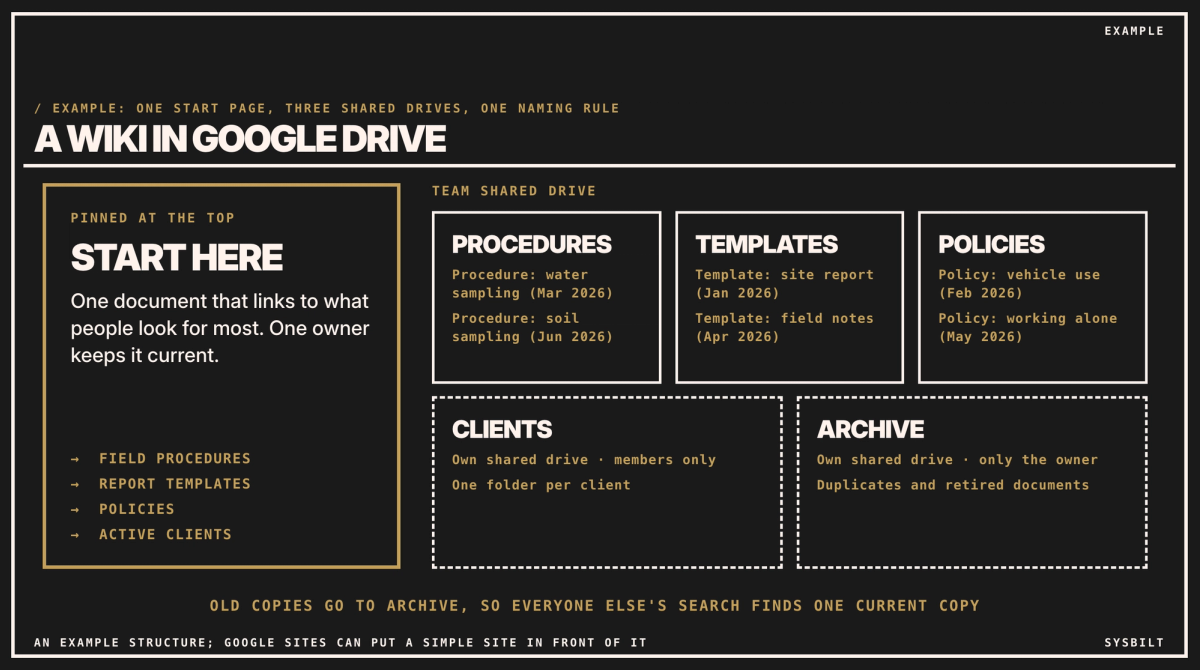
- One start page in a shared drive. Business Standard includes shared drives. A shared drive belongs to the company, not to one person's My Drive, so files stay when someone leaves. Pin one document at the top that links to what people look for most: the field procedures, the report templates, the policies.
- A folder for each area, not for each person: Procedures, Templates, Policies.
- Client files in their own shared drive, or one for each client if some work is confidential. Each shared drive has its own members, so you decide who sees what.
- One naming rule, with the month the document was last checked in its name, such as "Procedure: water sampling (Mar 2026)".
- Update the document, don't copy it. Google Docs keeps a version history, so the old wording is still there if anyone needs it.
- An Archive shared drive that only the owner opens, for the duplicates you find and the documents you retire. Only its members see its files, so everyone else's search finds one current copy. That matters because Drive's search reads the text inside files, not only their names.
- One owner and a back-up, such as your office manager and a senior consultant. Drive won't remind anyone when a page is out of date, so the owner checks the dates in the file names once a month, and the back-up covers leave.
Two extras help. Staff on site can make the field procedures available offline in the Drive app before they head out. And if you want it to look like a site, Google Sites, part of Workspace, puts a simple internal site in front of your Docs and folders; the files still live in Drive.
Start with the files you have
You don't need to move everything at once.
- 01List the five things people ask for most. Last month's messages will tell you.
- 02Find the current version of each, move it into its area folder and rename it with the naming rule.
- 03Move the other copies to Archive. Of the three sampling checklists, two go.
- 04Leave old client folders where they are. Link the active ones from the start page.
- 05Tell the team what's moved, and send them the start page link.
When Notion is worth adding
First, one condition: someone has time to build it and keep it tidy, or it ends up as messy as the drive it replaced. If that's true, Notion is worth its cost when two or more of these are:
- You want each procedure to carry an owner and a review date you can sort by. In Notion that's a database: a list where each row is a page, with columns for the owner and the review date.
- You want pages inside pages, such as a site-visit page with the sampling procedure and the equipment notes nested under it.
- You want readers to see that a page is current. On the Business plan, an owner can mark any page as verified, for a set time or indefinitely. Verified pages show a blue tick in search, and Notion reminds the owner when a verification runs out.
The first two work on Plus; verifying any page needs Business. If fewer than two are true, start with Drive. You can add Notion later and link it from the same start page. Our post on how to stop your staff answering the same questions covers what to put in it first.
Make either one stick
- One person owns it, keeps it current and retires old pages.
- Make it the answer. When someone asks something that's written down, send the link, not the answer.
- Use it in meetings. Open the page on screen instead of explaining from memory.
- Add a page when a question comes up twice.
Our post on documenting processes your team will read covers how to write each page so it gets used.
If you'd rather not do it yourself, we set up your knowledge base in Drive or Notion, whichever suits your team, with the start page, structure and owner in place. That's part of our Team Training service.
If you'd like a second pair of eyes, book a 15-minute call with our team in Sydney, by phone or video. Bring the five things your team asks about most, and where they sit in Drive now, and we'll tell you whether Drive will do or Notion is worth it, so you leave knowing what to set up first. There's no obligation after the call, and we don't upsell.

WRITTEN BY
Felipe Chaparro
Systems Architect and Founder of SYSBILT. Felipe engineers custom automation, AI workflows, and performance web architectures for scaling Australian service businesses.